
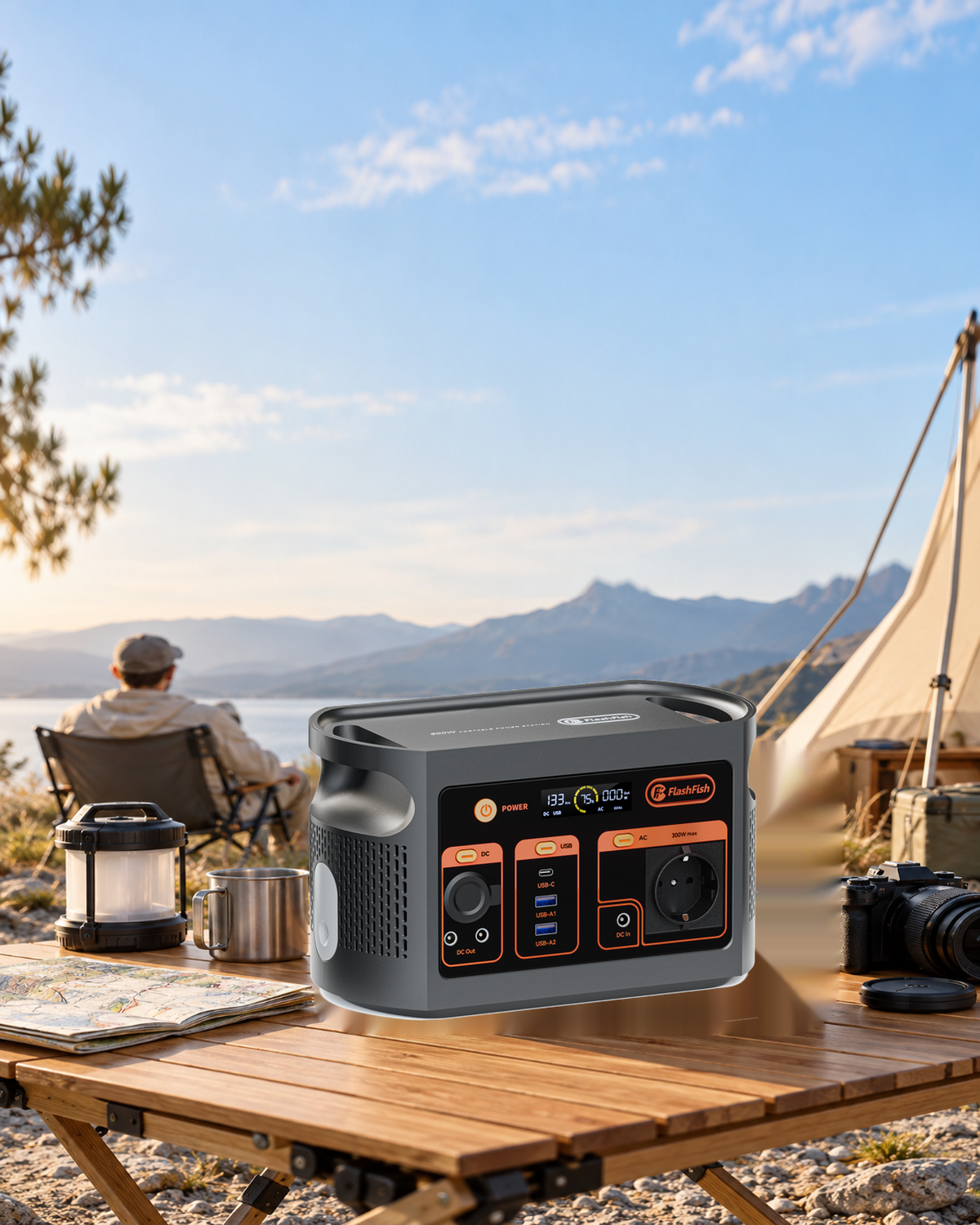
Plan the laptop charger, braille-display charging and braille data link separately. E103 has one USB-C PD output rated up to 60W, but that rating alone does not approve an accessible laptop desk. A working charger also does not establish a working screen-reader connection. Start with a setup the user already knows, then confirm its power requirements and a way to save and stop while access is still available.
Define one desk before choosing a power station
The example is a Framework Laptop 13 from the 12th Gen Intel Core family, a HumanWare Brailliant BI 20X using the BI X Series 2.6 guide, and a Windows screen-reader setup. Record the actual Windows, screen-reader and display firmware versions on the desk checklist. HumanWare supplies separate JAWS connection guidance with different setup routes for older and newer JAWS releases; this is not approval of every software combination.
For the laptop, Framework recommends a USB-PD charger rated at least 60W and supporting 20V for best charging performance. Its 60W adapter documentation includes a 20V, up-to-3A profile and a detachable USB-C cable. Use the exact approved cable and expansion-card arrangement for your laptop. The available E103 record states a 60W PD ceiling without the full output-profile table, so confirm the matching voltage/current before buying for this desk.
Write down the power and data routes
| Route | Example to record | Acceptance question |
|---|---|---|
| Laptop power | E103 USB-C → suitable USB-C cable → laptop charging port | Does the exact station provide the laptop’s required PD profile with this cable? |
| Braille data | Laptop screen reader → established Bluetooth terminal connection → BI 20X | Can the user read and navigate a known document on this exact software setup? |
| Display charging | BI 20X supplied charging cable and adapter, when needed | Does the charging arrangement follow the display manual, independently of the data link? |
| End of session | Save file → confirm saved location → normal software/device shutdown | Can the user complete these actions before the chosen stop point? |
The HumanWare BI X Series 2.6 user guide (DOCX) describes USB and Bluetooth host connections in Terminal mode and separate charging instructions. For this example, Bluetooth is the proposed data route, subject to the actual laptop and screen-reader configuration. The supplied USB-A-to-USB-C lead is the identified display charging cable. Its appearance does not establish any alternative cable’s data capability.
Where E103 belongs in the plan
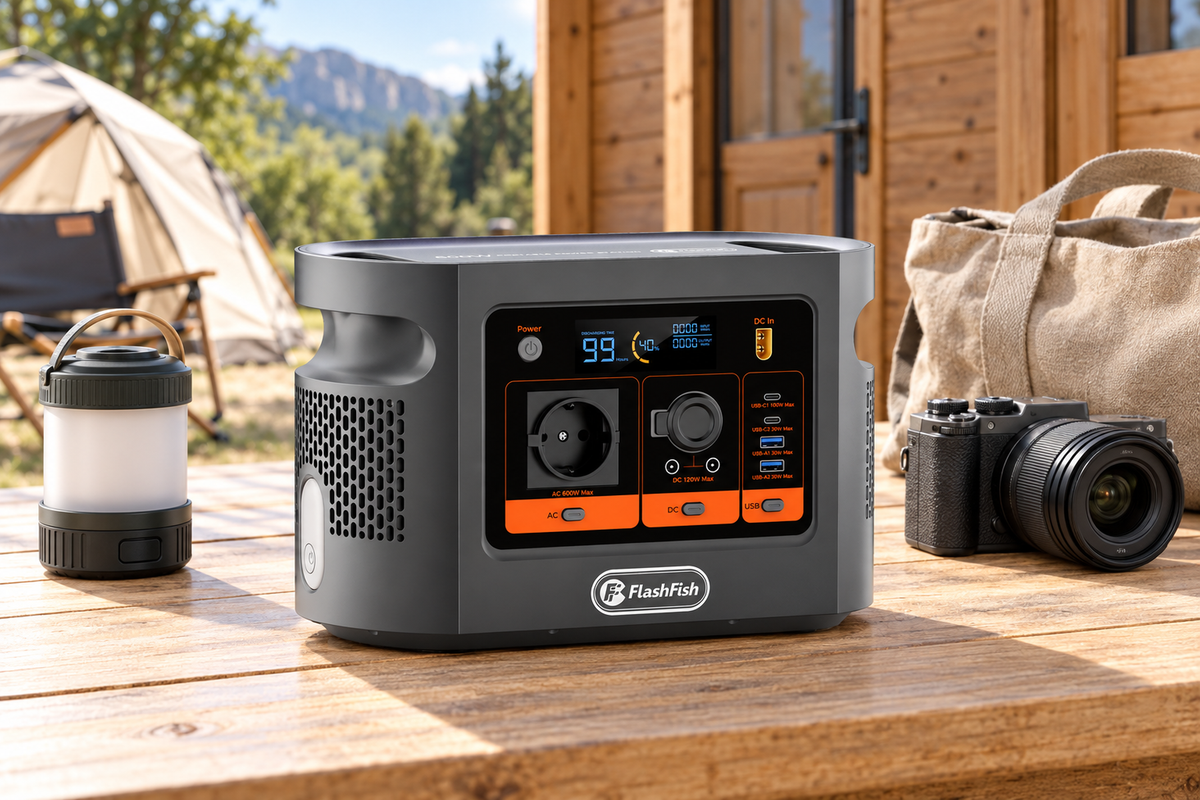
E103’s documented nominal capacity is 179.2Wh, its continuous AC rating is 300W and its peak AC rating is 600W. These values describe different limits. Do not use the peak figure as a continuous charger budget, or divide the nominal capacity by an adapter label to promise a session length. If an AC adapter is proposed for the display, check its actual input, the regional outlet and the complete AC load first.
After listing the required profiles and cable ends, check the E103 Europe specification against that list. A missing profile is a reason to ask for confirmation, not to choose a cable by connector shape. USB-IF explains how Power Delivery manages device power requests; the standard’s capabilities are not proof that a particular E103/device combination implements them.
Prepare an accessible stop sequence
- Agree where the station, cables and saved-work location will be. Keep controls reachable and leads out of the user’s working path; follow the equipment placement instructions.
- Record the intended laptop power source and the display’s battery/charging arrangement. Keep the established mains setup available until the proposed portable arrangement is confirmed.
- With the user, confirm the chosen host connection using a familiar document and navigation command. Do this before depending on the desk for a session.
- Choose a planned saving point and an alternative way to access essential information. Save and confirm the file location while the familiar screen-reader path is working.
- Close applications and use the normal laptop and display shutdown instructions. Disconnect power only after the work is saved and the normal stop sequence is complete.
Three checks that catch different failures
- Power present, no readable text: check the selected host connection and screen-reader configuration; additional station watts do not resolve a data-link problem.
- Text working, laptop charge unconfirmed: keep the established power arrangement and resolve the exact PD profile. A working display is not charger evidence.
- Battery available, session ending: save deliberately and stop normally. Remaining capacity does not prove that an unsaved file is protected.
Frequently asked questions
Does a charging indicator prove that braille data is connected?
No. Confirm a known line of text and a familiar navigation command on the selected host. A battery indicator answers a different question.
Can I use a station USB-C output as the screen-reader host?
No data-host function is documented for E103. Keep the braille connection on the laptop using the connection method supported by HumanWare.
Should I select Bluetooth or a wired connection?
Use the method already supported by your exact laptop, screen reader and display configuration. Bluetooth keeps the display connector free for a separate charging cable; a wired host link needs the correct host port and data cable.
Can 179.2Wh tell me when to save my work?
No. Usable energy, laptop activity, device batteries and conversion losses change the result. Choose a save point and an alternative access method before the session; do not wait for power to disappear.
Will the same checklist suit every braille display?
The example is Brailliant BI 20X with the BI X Series 2.6 guide. Other models, firmware and screen readers need their own instructions.
Method and next step
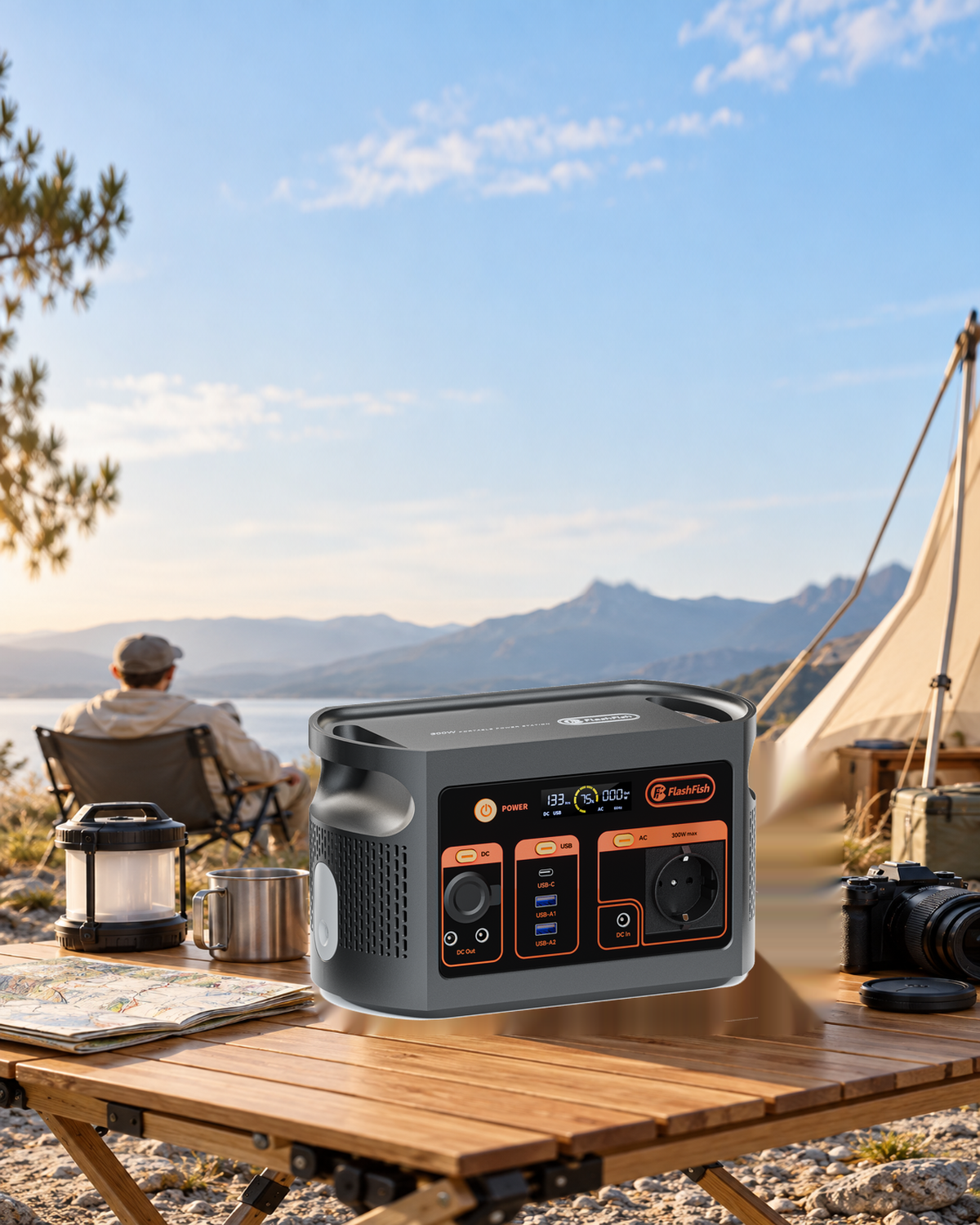
This is a source-based planning checklist by FlashFish Miles, using manufacturer documentation checked on 7 November 2026. No complete desk was tested and no accessibility outcome, device compatibility or runtime was measured. The featured E103 campsite illustration does not depict the braille setup.
Keep your current working desk arrangement while filling the missing power and connection details. If the evidence supports changing its power source, compare E103 with your completed desk checklist before deciding.



Оставить комментарий
Этот веб-сайт защищается hCaptcha. Применяются Политика конфиденциальности и Условия использования hCaptcha.