

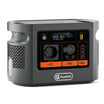
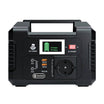

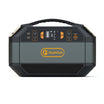
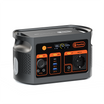


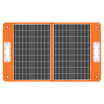
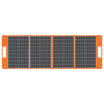


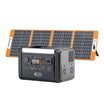

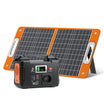

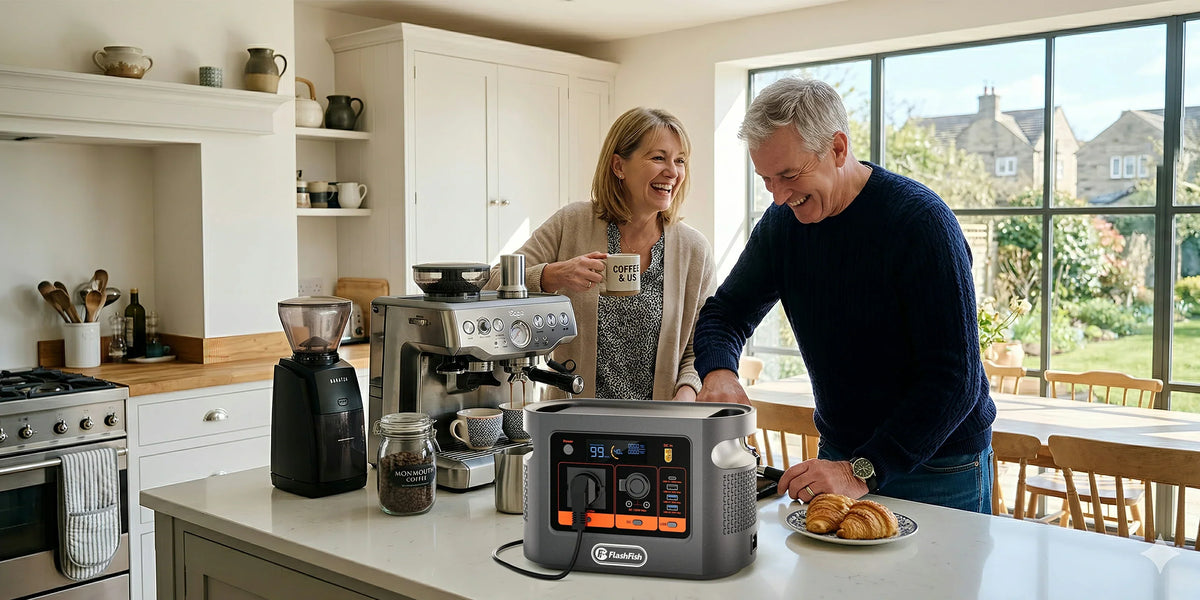
Short answer: E106B can be a reasonable source for a verified laptop workspace because it offers one 600W continuous pure-sine AC outlet, a 100W USB-C PD port and 384Wh of nominal energy. That is only the first screen. A dock can require its own AC adapter, a laptop may need a particular USB PD profile, and a portable monitor may use a separate power and video route.
Fill in the PATHS worksheet first
| Check | Evidence to record | Do not assume |
|---|---|---|
| Power into dock | Adapter input and output, connector and required wattage | A USB-C socket means the dock accepts USB-C power |
| Accepted laptop charging | Laptop PD profiles or original adapter rating | A 100W source supplies every laptop at full performance |
| Transport for video | Thunderbolt, DisplayPort Alt Mode or DisplayLink requirement | Any USB-C port carries a monitor signal |
| Hardware in chain | Monitor, SSD, Ethernet, phone and every adapter | The dock's headline rating includes all attached devices |
| Session energy | Peak watts and accumulated watt-hours during real work | Nominal Wh equals delivered AC or USB energy |
Check the E106B page against your dock power path. The local record supports a 600W continuous AC screen and up to 100W on USB-C1, but neither figure completes the compatibility check.
Three connection routes lead to different answers
Route 1: E106B AC outlet to the dock's original adapter
This is often the clearest route for a desktop dock that was designed around its supplied power adapter. Verify the adapter's regional input, then count the laptop, monitor and accessories behind the dock as one system. The E106B has one AC outlet, so do not plan a second AC load without a suitable, manufacturer-permitted arrangement.
Route 2: E106B USB-C directly to the laptop
This can remove an AC conversion step, but only when the laptop accepts a compatible USB PD profile and the cable is suitable. USB-IF notes that cables differ in capability and that power and data markings are separate. A cable that carries charging power does not automatically carry the monitor's video signal.
Route 3: Separate laptop and monitor power
A laptop can use USB-C1 while a low-power monitor uses its own documented input, or the dock can remain on AC while the monitor uses another path. This may make troubleshooting easier, but simultaneous port limits and every cable still need checking. Do not add the printed maximum of every port as though all are always available together.
Why a dock is more than a single load
Microsoft's USB-C guidance separates host support, connected-device features, cable capability, charging power and display Alternate Modes. That is the practical lesson for any brand: the power station can energise the chain, but it cannot add a missing laptop video mode or correct an incompatible dock.
A portable monitor creates another branch. Some accept power and video over one USB-C cable; others use USB-C for power and HDMI for video. Record the exact model, brightness setting and source. High brightness, attached storage and phone charging can materially change measured session energy.
Run a controlled workspace test
- Update the laptop and dock using the manufacturers' current instructions while mains power is available.
- Connect only the dock and laptop. Confirm stable charging and note any reduced-performance warning.
- Add the portable monitor and confirm its power and video paths separately.
- Add storage, Ethernet, phone charging and other peripherals one at a time.
- Measure peak watts and accumulated watt-hours during a representative video call, file transfer and normal work period.
- Stop if a connector heats unusually, the dock repeatedly disconnects, the laptop reports insufficient power or the station shows an overload or temperature warning.
For planning, use: required session energy = measured complete-workspace Wh + conversion and station overhead + chosen reserve. Keep the measured period, workload, brightness and peripherals with the result. It is evidence for that setup, not a fixed duration for another user.
When E106B is a sensible candidate
| Reasonable candidate when | Choose another route or class when |
|---|---|
| The dock adapter and complete load remain comfortably inside the 600W AC screen | The exact dock input or startup behaviour is unknown |
| The laptop accepts a documented USB PD profile within the E106B USB-C1 ceiling | The laptop requires a proprietary or higher-power supply |
| Video capability is confirmed independently of charging | The plan expects the power station to add video support |
| A representative session fits with reserve | The plan relies only on 384Wh divided by an adapter number |
Common mistakes
- Treating all USB-C ports as identical.
- Using the dock's advertised laptop-delivery watts as its mains input.
- Forgetting the monitor, SSD, Ethernet and phone loads.
- Testing at an idle desktop instead of during real work.
- Assuming a working display means the laptop is charging correctly.
Frequently asked questions
Does every USB-C dock carry video and power?
No. USB-C describes the connector, while Power Delivery, data speed and video capability depend on the laptop, dock, cable and port implementation. Check every manual.
Should the dock connect to E106B by USB-C or AC?
Use the route documented by the dock maker. Many desktop docks expect their own AC adapter; a direct USB-C route works only when the dock accepts a compatible PD input.
Can the E106B 100W USB-C port power any laptop?
No. The 100W rating is an output ceiling. The laptop must accept a supported USB PD profile and the cable must carry the required power.
How should I estimate workspace duration?
Measure accumulated watt-hours for the exact laptop, dock, monitor and accessories during representative work, then plan a reserve. Do not divide 384Wh by one adapter label.
Why might the monitor work while the laptop does not charge?
Video and power can follow different paths. The dock may deliver video but insufficient laptop power, or the selected cable or host port may lack the required capability.
Conclusion: validate every path, then size the session
E106B has a useful starting envelope for a mobile workstation, but the decisive evidence lives in the dock, laptop, monitor and cable records plus a measured trial. Compare current FlashFish portable power stations if the verified setup needs a different power or energy class.
Sources and evidence limits
- FlashFish Europe E106B page and the local product database for bounded E106B fields.
- Microsoft USB-C support guidance for charging-power and display Alternate Mode checks.
- USB-IF cable and connector guidance for separate cable power and data capabilities.
Evidence checked 14 September 2026. No E106B, dock, laptop, cable or monitor combination was connected or measured for this article. Confirm the exact regional hardware and current instructions before use.



Leave a comment
This site is protected by hCaptcha and the hCaptcha Privacy Policy and Terms of Service apply.