









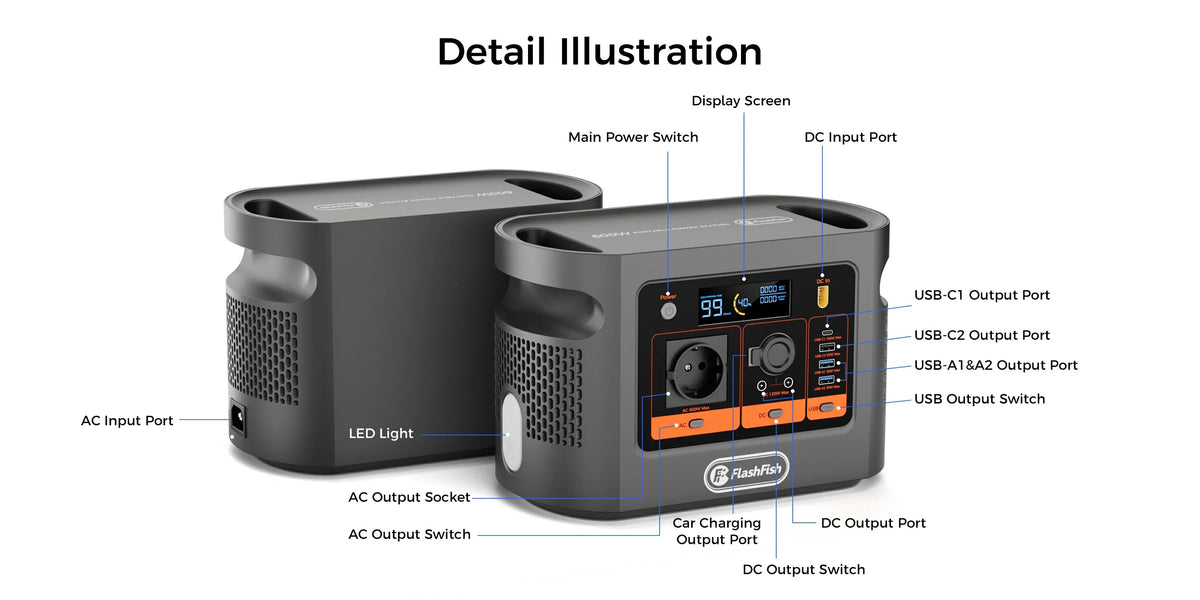
Short answer: start with E112B USB-C1 for a USB-C laptop because its documented ceiling is up to 100W Power Delivery; USB-C2 is documented up to 30W. Neither number proves compatibility or charging speed. The E112B port, cable and laptop must negotiate a mutually supported profile, and the laptop may draw less than the port ceiling.
Use SOURCE-PORT-CABLE-SINK-OBSERVE: identify E112B as the source, select the documented port, verify the cable, check the laptop as the sink, then observe the negotiated result.
Port-selection table
| Check | USB-C1 | USB-C2 | Decision |
|---|---|---|---|
| Documented ceiling | Up to 100W Power Delivery | Up to 30W Power Delivery | Start with C1 for higher-demand laptops |
| Laptop requirement | Must accept a mutually supported USB Power Delivery profile | Check the laptop manual or charger label | |
| Cable | Must support the requested power and be undamaged | Connector shape alone is insufficient | |
| Observed result | May be lower than the port ceiling | Watch for a slow-charger warning or no charge | |
| Simultaneous use | Not established by the facts used here | Do not promise 100W + 30W at once | |
Check E112B port details before connecting your laptop, then compare them with the laptop and cable documentation.
Source: the E112B port can only offer documented profiles
The authoritative E112B record distinguishes USB-C1 at up to 100W Power Delivery from USB-C2 at up to 30W. Those are ceilings for the ports, not promises that a connected computer will request or receive the maximum. This guide does not infer simultaneous sharing rules from the two numbers and does not add them into a promised 130W result.
Port: choose C1 first for a laptop
A laptop that expects more than 30W is more likely to have a viable path through USB-C1, so C1 is the default first choice. USB-C2 can still be useful for lower-demand devices or a laptop whose manufacturer explicitly supports a compatible low-power profile. If C1 is already needed by another device, do not assume moving the laptop to C2 preserves the same behaviour.
Cable: its rating is part of the power path
Use a cable documented for the requested power and Power Delivery operation. USB-IF's compliance program distinguishes cable power ratings, including 60W and 240W markings, but a printed mark does not prove an unknown cable is authentic or undamaged. A charge-only, low-rated or damaged cable can limit or prevent the negotiated result even when both endpoints support more.
Sink: the laptop decides what it can accept
Read the laptop manual, its supplied charger label or the manufacturer's support page. Record the accepted voltage/current profiles rather than only the charger's headline watts. Some laptops accept USB-C charging on only one computer-side port. Others may accept 30W but reduce performance, charge only while sleeping or report a slow charger. A proprietary connector laptop may need its approved AC charger instead.
Observe: treat warnings as evidence
Connect the powered E112B, the selected cable and the laptop while the laptop is in a normal, supervised state. Confirm the operating system shows charging and watch for a slow-charger warning, repeated connection sounds, unusual heat or no charge. Stop for damage, odour, abnormal heat or unstable behaviour. Observation can reject a path; one successful session does not prove universal compatibility or long-term performance.
Three laptop examples
- A laptop supplied with a 65W USB-C PD charger: USB-C1 is the sensible first port, paired with a suitably rated cable. Confirm accepted profiles; do not assume it will draw 65W continuously.
- A small laptop that explicitly accepts 30W USB-C input: USB-C2 may be sufficient, leaving C1 free. Verify the actual model and observe whether the operating system reports normal charging.
- A gaming laptop with a proprietary high-power adaptor: neither USB-C port is automatically suitable. Use the manufacturer-approved charging path and check any AC plan separately.
When USB-C1 is the better first choice
- The laptop accepts USB Power Delivery above 30W.
- The original or recommended charger is in the 45W, 60W, 65W or 100W class.
- The cable is documented for the requested power.
- You want the most headroom available from the two E112B USB-C ports.
- The laptop and operating system show normal charging without warnings.
When USB-C2 may be enough
- The laptop documentation explicitly accepts a compatible profile at or below 30W.
- Slow charging is acceptable for the task and is acknowledged by the device documentation.
- The cable supports the required profile and is in good condition.
- You have observed stable charging without abnormal heat or repeated reconnects.
When neither USB-C path is established
- The laptop requires a proprietary adaptor or does not document USB-C charging.
- The accepted profiles, correct computer-side port or cable rating are unknown.
- The plan requires a specified charging rate or uninterrupted operation.
- You need an unverified simultaneous output from both E112B USB-C ports.
- The system reports no charge, slow charging that is unacceptable, repeated disconnects or abnormal heat.
Frequently asked questions
Which E112B USB-C port should I try first for a laptop?
Start with USB-C1 because its documented ceiling is up to 100W Power Delivery, compared with up to 30W for USB-C2. Then verify the laptop's accepted profiles and the cable rating; the laptop may negotiate less.
Will USB-C1 always charge a laptop at 100W?
No. One hundred watts is the port ceiling, not a promised draw. The source, cable and laptop negotiate a mutually supported profile, and laptop demand changes with state and settings.
Can USB-C2 charge a laptop?
Possibly, if the laptop accepts a compatible profile at or below the port's 30W ceiling. Some laptops may charge slowly, only while sleeping, or not accept that path; check the laptop documentation.
Does any USB-C cable support the 100W port?
No. Use a cable whose documented rating supports the requested power and required Power Delivery operation. An unmarked, damaged or charge-only cable can be the limiting component.
Can I add the 100W and 30W port ratings to promise 130W at once?
No. This guide does not claim simultaneous shared-port behaviour. Treat each published port ceiling separately and verify current E112B documentation before planning multiple devices.
Conclusion
USB-C1 is the right first port for most USB-C laptops because it has the higher documented ceiling. The final answer still depends on the cable and the laptop's accepted profiles, and the observed result may be lower. Ask FlashFish Europe about an unresolved USB-C path when the current E112B documentation or laptop requirements leave a gap.
Sources and evidence limits
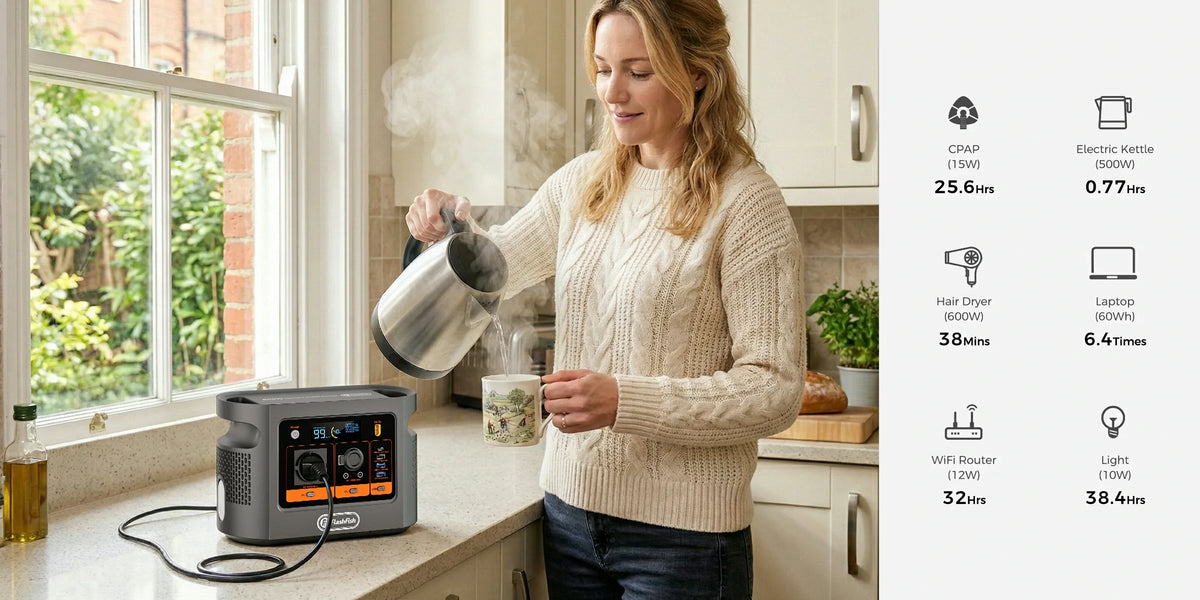
Checked 17 October 2026. E112B port facts come from the authoritative local EU manual and engineering record plus the current Europe page. USB-IF supports Power Delivery and cable-rating context; Microsoft supports the slow-charger troubleshooting boundary. No E112B, cable or laptop was connected or instrumented. No compatibility, negotiated wattage, charging speed, simultaneous-port behaviour or runtime is claimed. Continuous AC output, peak AC output and warranty remain unspecified in the authoritative product record. The featured image is contextual only.



Laat een reactie achter
Deze site wordt beschermd door hCaptcha en het privacybeleid en de servicevoorwaarden van hCaptcha zijn van toepassing.