

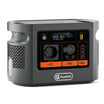
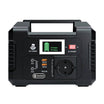

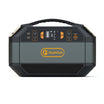
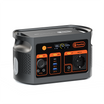






Short answer: use E106B USB-C1 when the laptop explicitly accepts a compatible USB Power Delivery profile at or below the port's 100W ceiling and the cable is rated for that power. Use the E106B AC outlet with the laptop's original regional adapter when USB-C charging is unsupported, proprietary or insufficient for the laptop under load. Neither route is universally better.
The E106B local record lists 384Wh nominal energy, one 600W continuous pure-sine AC outlet, USB-C1 up to 100W PD and USB-C2 up to 30W PD. The practical decision is FOUR-L: load, link, loss path and limit. This article focuses on a single laptop power route; it does not assess dock video, monitor support or a one-cable workstation.
Quick decision table
| Question | Direct E106B USB-C1 | E106B AC plus laptop adapter |
|---|---|---|
| Laptop support | Requires a compatible USB PD input profile | Uses the maker's documented adapter input |
| Published E106B ceiling | Up to 100W on USB-C1 | 600W continuous pure-sine AC for the outlet |
| Cable or adapter | Correctly rated USB-C cable | Original or maker-approved regional adapter |
| Conversion chain | Station battery to USB PD conversion | Station battery to AC, then adapter to laptop DC |
| Main stop condition | Unsupported profile, insufficient input or cable mismatch | Damaged/wrong adapter, regional mismatch or load outside documented limits |
L1: identify the laptop's real load
Start with the laptop manual and the original charger label. Record the charger's rated output profiles, the laptop's supported USB-C charging ports and whether the maker requires a proprietary connector. A charger's maximum wattage is not the laptop's constant consumption, but it indicates the class of supply the manufacturer expects.
A laptop that ships with a 65W USB-C adapter may be a candidate for E106B USB-C1, provided the voltage/current profile and cable match. A mobile workstation supplied with a higher-watt proprietary adapter should not be assumed to work normally from a 100W USB-C ceiling. It may charge slowly, limit performance or continue discharging under a heavy workload.
L2: verify every link in the USB-C chain
USB-C names the connector, not one fixed charging result. The E106B port, cable and laptop negotiate a supported USB Power Delivery profile. Check the laptop's charging port, the required profile and the cable's power rating. USB-IF also separates power and data capabilities, so an excellent data cable is not automatically the right high-power cable.
Connect directly for the first test. Hubs, extension cables and magnetic adapters add undocumented links. If the laptop reports slow charging or loses battery percentage during the intended workload, treat that as evidence that the route does not meet the complete task—even if the charging icon appears.
L3: understand the loss path without inventing a percentage
With direct USB-C, the station converts battery power into the negotiated USB PD output. With AC, the station first supplies AC and the laptop adapter converts that AC back to the laptop's DC input. Removing conversion stages can reduce avoidable overhead in some setups, but the size of that difference depends on the exact converters and load.
No route-specific E106B efficiency is provided in the authoritative local record, and no measurements were made for this article. Therefore a buyer should not turn the diagram into a percentage, extra hours or an assumption that USB-C always wins. Measure both approved paths if energy use matters.
L4: respect the limit that applies to the chosen route
The direct route is bounded by USB-C1's documented 100W maximum and by the lower negotiated capability of the laptop or cable. The AC route is bounded by the E106B's documented 600W continuous output, the single regional outlet and the laptop adapter's requirements. These are different ceilings, not two versions of the same number.
USB-C2 is listed at up to 30W and should not be substituted silently for USB-C1 in a laptop plan. The local record also does not state every simultaneous-USB allocation, so adding phones or other USB devices requires a progressive test rather than simple arithmetic from the port labels.
Three practical laptop cases
Case 1: a USB-C laptop supplied with a charger below 100W
Direct USB-C1 may be the cleaner route when the exact laptop accepts a compatible profile and the cable carries the required power. Confirm stable charging during the real workload, not only while the laptop is asleep.
Case 2: a laptop with a proprietary original adapter
Use the original adapter through the E106B AC outlet when that is the maker's documented path and its regional input is compatible. Do not replace a proprietary power route with USB-C because the laptop happens to have a USB-C data port.
Case 3: a high-power laptop that can also accept USB-C
USB-C may support light work or battery top-up yet fall behind during rendering, gaming or other sustained loads. Compare the laptop's live charging status and battery trend under the intended workload. AC with the original adapter may be the better-supported route, provided the total continuous demand stays within the station's limits.
A supervised A/B measurement
- Charge the laptop to the same starting level for each route.
- Use the same screen brightness, applications, network and workload.
- Test USB-C1 with a verified cable and record charging status, laptop battery trend and station energy change.
- Repeat with the original adapter through AC.
- Stop on warnings, repeated disconnects, abnormal heat or damaged connectors.
- Choose the route that is documented, stable and sufficient; retain a reserve instead of publishing a fixed duration.
This comparison is specific to one laptop, cable, adapter and workload. It should be repeated after a major firmware, charger or equipment change.
Review the E106B output specifications alongside the exact laptop and charger manuals before choosing a route.
Frequently asked questions
Is E106B USB-C1 always better than AC for a laptop?
No. Direct USB-C can simplify the path when the laptop accepts a compatible profile, but AC is the documented route for laptops that require their original adapter.
Can the 100W USB-C1 output charge every USB-C laptop?
No. The laptop, E106B output and cable must share the required USB Power Delivery profile, and some laptops need more than 100W or a proprietary charger.
Why can a laptop discharge while plugged into USB-C?
The negotiated input may be below the laptop's active demand, or the charger or cable may not meet the required profile. Check the laptop's own charging status and manual.
Does a 100W cable prove 100W charging?
No. The marking describes cable capability. The source and laptop still negotiate the actual power, which can be lower.
Does direct USB-C always use less energy than AC?
Not as a universal rule. It can remove an AC inverter and laptop-adapter stage, but real efficiency depends on the exact load and converters and should be measured.
Conclusion: choose the documented path that sustains the workload
USB-C1 is the compact route for a laptop with a verified compatible profile and cable; AC is the conservative route for the original adapter or a laptop whose demand exceeds the supported USB path. Measure the real workload and watch the laptop's battery trend. If the verified requirement falls in a different class, Compare FlashFish portable power stations.
Sources and evidence limits
- FlashFish Europe E106B page and local product-source record for bounded E106B output facts.
- USB-IF Power Delivery overview for negotiated power.
- USB-IF cable and connector guidance for cable capability markings.
- Microsoft slow-charging guidance for charger and cable mismatch symptoms.
Evidence checked 16 September 2026. No E106B, laptop, adapter or cable was physically tested. The local E106B chemistry and peak-output fields are blank, so this article makes no claim for either field.





Laisser un commentaire
Ce site est protégé par hCaptcha, et la Politique de confidentialité et les Conditions de service de hCaptcha s’appliquent.